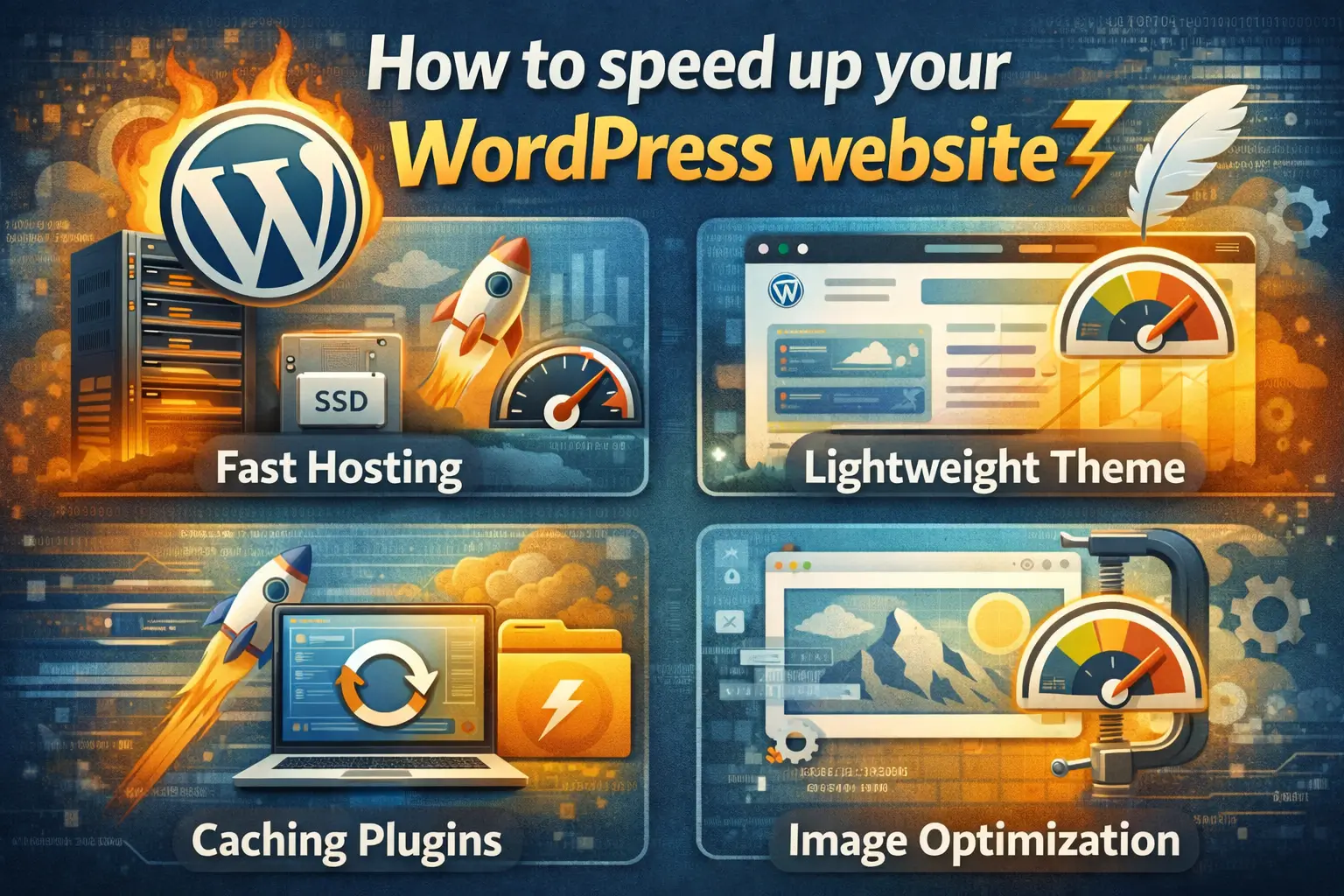
How to speed up your WordPress website?
- Optimize images to reduce file sizes.
- Implement caching to serve content faster.
- Keep your theme and plugins updated and remove unused ones.
- Consider performance-focused hosting.
Is your WordPress site feeling sluggish? A slow website can frustrate visitors and hurt your SEO. Don't worry, you don't need to be a tech wizard to boost your site's speed! This guide will give you some quick and easy wins to get your website running faster.
Optimize Images Like a Pro
Why image optimization matters (huge impact on page load)
Images are often the biggest culprits behind slow loading times. Large, unoptimized images can significantly increase your page size, leading to a poor user experience. Optimizing your images is one of the most impactful things you can do.
Compress images *before* uploading (tools like TinyPNG, ImageOptim)
Before you even upload an image to your WordPress media library, compress it! Tools like TinyPNG (for PNG and JPEG) and ImageOptim (for Mac) can drastically reduce file size without a noticeable loss in quality. This simple step can save you a ton of bandwidth and loading time.
Choose the right image format (JPEG vs. PNG vs. WebP)
Choosing the right image format is crucial. JPEGs are generally best for photos, as they offer good compression. PNGs are better for graphics with sharp lines and text, where preserving detail is essential. Consider using WebP, a modern image format that offers superior compression and quality, if your hosting and plugins support it.
Use descriptive alt text (for SEO and accessibility)
Alt text isn't just for SEO; it's also important for accessibility. Describe your images clearly and concisely. This helps search engines understand what your images are about and provides context for visually impaired users.
Leverage the Power of Caching
What is caching and why is it awesome?
Caching is like creating a snapshot of your website and serving that snapshot to visitors instead of generating the page from scratch every time. This drastically reduces server load and speeds up page load times. It's essentially magic for your website's performance!
Install a caching plugin (WP Rocket, W3 Total Cache, LiteSpeed Cache)
WordPress offers several excellent caching plugins. WP Rocket is a premium option known for its ease of use and powerful features. W3 Total Cache and LiteSpeed Cache are popular free options that offer a wide range of caching features. Choose the one that best suits your needs and technical expertise.
Configure your caching plugin (easy settings to get started)
Most caching plugins have straightforward settings. Start by enabling page caching and browser caching. Experiment with other settings like minification and Gzip compression to further optimize your site's performance. Don't be afraid to consult the plugin's documentation for guidance.
Test your cache to make sure it's working
After configuring your caching plugin, test to ensure it's working correctly. Use tools like Google PageSpeed Insights or GTmetrix to analyze your website's performance and verify that caching is enabled. You can also use your browser's developer tools to check the "cache-control" headers.
Keep Things Tidy: Theme and Plugin Housekeeping
Delete unused themes and plugins (less bloat = faster site)
Having a bunch of inactive themes and plugins installed can bloat your website and slow it down. Delete any themes or plugins that you're not actively using. Less code means a faster site!
Update themes and plugins regularly (security and performance improvements)
Keeping your themes and plugins updated is crucial for both security and performance. Updates often include bug fixes, security patches, and performance improvements. Make sure you're running the latest versions of everything.
Choose lightweight themes (avoid feature-heavy themes if you don't need them)
When selecting a WordPress theme, opt for a lightweight and well-coded theme. Avoid themes that are packed with unnecessary features that you'll never use. A simpler theme will generally perform better.
Consider a performance-focused hosting provider
Your hosting provider plays a significant role in your website's speed. Consider switching to a performance-focused hosting provider that offers optimized servers, caching solutions, and content delivery networks (CDNs).
Conclusion
Speeding up your WordPress site doesn't have to be daunting! By optimizing your images, implementing caching, and keeping your site clean, you can dramatically improve performance and provide a better experience for your visitors. Start with these tips and watch your website fly!